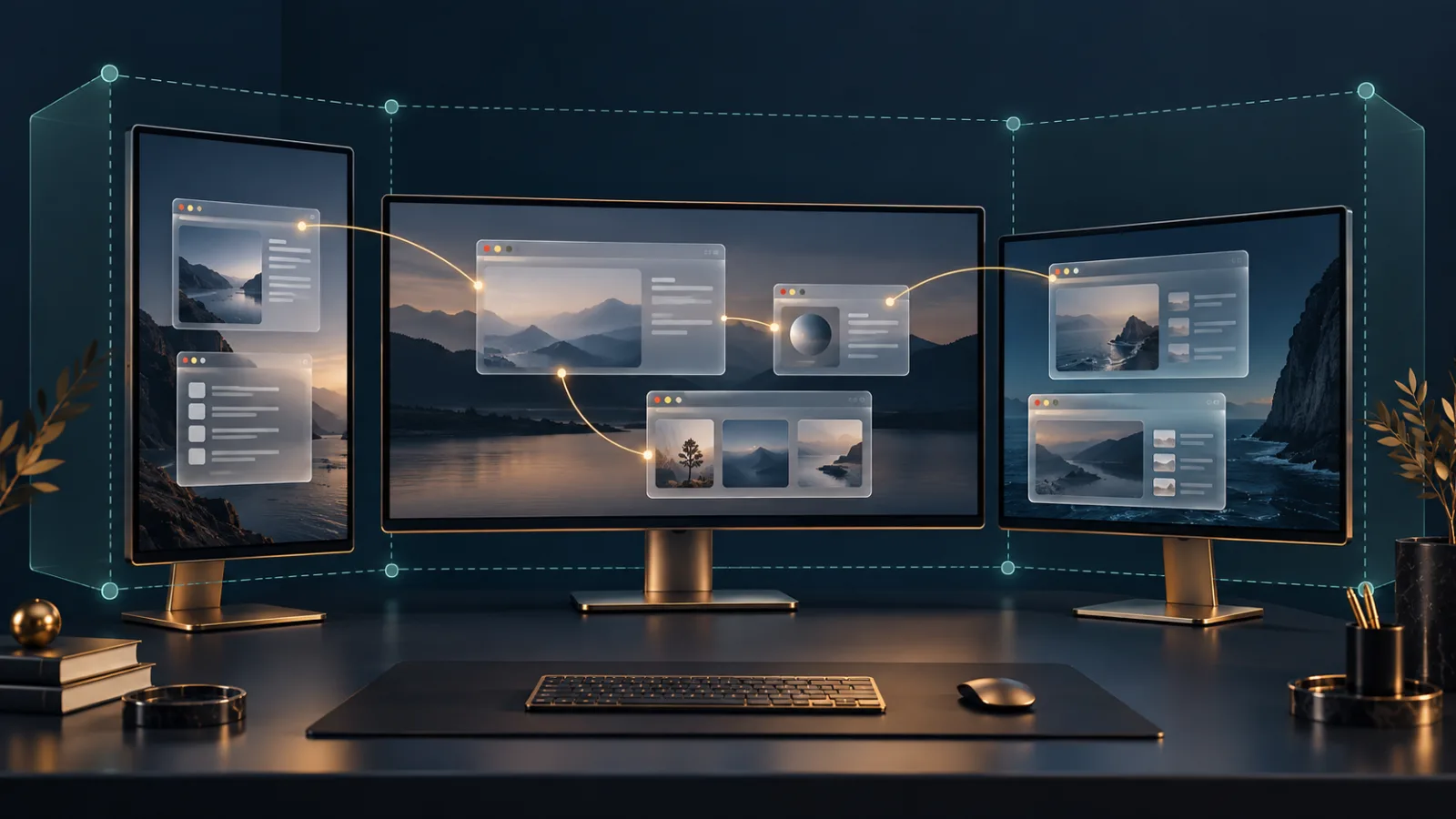
A laptop connected to a second monitor can turn one browser into a small command center: a presentation on one screen, speaker notes on another, or a dashboard spread across several displays. The Window Management API is designed for those deliberate multi-screen experiences. Because display layouts can be distinctive—and because placing content on another screen changes what people nearby may see—the browser places meaningful limits around the feature.
Window Management API: what sites learn about screens
The Window Management API lets a permitted web application request detailed information about the displays connected to a device. It can learn how many screens are available, their usable dimensions and positions, which screen is primary or internal, their pixel ratios, and which display currently contains the browser window.
That information helps professional tools place windows intelligently. A slide application can put the presentation on a projector while keeping controls on the laptop. A trading, medical, or operations dashboard can restore a chosen layout. The W3C Window Management specification defines this model and its privacy and security boundaries.
Why display layouts are sensitive
Multi-screen setups can be unusually specific. The combination of screen count, resolutions, relative positions, color depths, pixel ratios, and internal-versus-external status may narrow the set of devices that look alike. A common single-monitor laptop reveals less than a workstation with three mismatched displays arranged at distinctive coordinates.
This does not mean every multi-monitor page is tracking you. It means the information adds fingerprinting surface and should be exposed only when the site has a credible reason. Our browser fingerprinting guide explains how hardware characteristics become more identifying when combined with other signals.
The standard recommends minimizing exposed information and carefully handling human-readable screen labels. A label should help the user distinguish displays without including unnecessarily unique details such as a serial number.
A single bit can appear before full permission
A page may be able to read screen.isExtended, a boolean indicating whether more than one screen is present. This lets a site decide whether to show a “use another screen” control without prompting every single-screen visitor.
That yes-or-no value still reveals one bit about the environment. The specification acknowledges it as a detectable fingerprinting signal, but considers the smaller disclosure useful for avoiding unnecessary prompts. Permissions Policy can force the value to false for content that should not receive the capability.
Detailed access requires express permission
To obtain the full display collection, a page calls getScreenDetails(). In supporting browsers, this requests the window-management permission. If permission is denied, detailed screen information is not returned. The feature is intended for secure contexts and is governed by Permissions Policy, with third-party frames blocked unless the top-level site explicitly delegates access.
The MDN guide to Window Management describes how the permission precedes access to the screen list. Read the prompt in context: a presentation or control-room tool may have a clear use, while an ordinary article or shopping page usually does not.
Our broader browser permissions guide offers a simple test: identify the feature you want, ask whether the requested information is necessary for it, and deny unrelated access without abandoning the whole site.
Window placement can create physical-world risks
Detailed screen information is only half the story. The API helps sites place or move windows onto specific displays. A legitimate presentation tool can open a clean audience view on a projector. A malicious page could try to show private or disturbing content on an unexpected screen, hide content on a less visible display, or imitate browser and operating-system interfaces across multiple screens.
These risks are why explicit permission and browser intervention matter. Browsers may constrain a placement request to the current screen, highlight cross-screen activity, or reject behavior that looks deceptive. Opening new windows and entering fullscreen also retain their usual user-activation rules.
Permission does not equal screen capture
Window Management reveals display geometry and supports placement; it does not automatically transmit the pixels shown on those displays. Screen capture is a separate capability with its own chooser and consent flow. A site that can see that a projector exists cannot therefore read the private document displayed on it.
If an application also asks to share a screen, evaluate that request separately. Our screen-sharing privacy guide explains why choosing a tab, window, or entire display produces very different exposure. Never assume the earlier window-management prompt covers the later capture request.
Revocation and changing hardware
Display configurations are not permanent. A projector can be unplugged, a laptop lid can close, or resolution and scaling can change. The API provides events so a permitted application can adjust. Those updates make multi-screen workflows resilient, but they also make temporary hardware changes easier to observe.
When the task is finished, close the extra windows and remove permission if the site no longer needs it. Revocation should end future access to detailed screen data. On shared machines, also check that the application has not been configured to reopen windows automatically on the next visit.
Safer habits for multi-screen browsing
- Grant window-management access only to tools with an obvious multi-display purpose.
- Check which physical display is selected before showing sensitive or personal content.
- Treat fullscreen, popups, and screen capture as separate browser decisions.
- Close secondary windows when a presentation or dashboard session ends.
- Review and revoke the permission when continued access is unnecessary.
Productivity without exposing the whole workspace
The Window Management API solves a real problem: professional web applications need to understand where windows can go. Its better design choices keep that power narrow—secure delivery, an express permission, default limits on third-party frames, reduced pre-permission data, and room for browsers to stop abusive placement.
Noorani brings the same intentionality to daily browsing. Tracker blocking helps reduce routine observation, while prayer times, Qibla, Hijri tools, and offline Quran access remain available without turning every moment into another data stream. More screens can create more room to work; they should not automatically create more room for a website to profile you.
Browse with more intention
Noorani brings prayer times, Qibla, tracker blocking, and privacy into one calm desktop browser built for how Muslims live online.