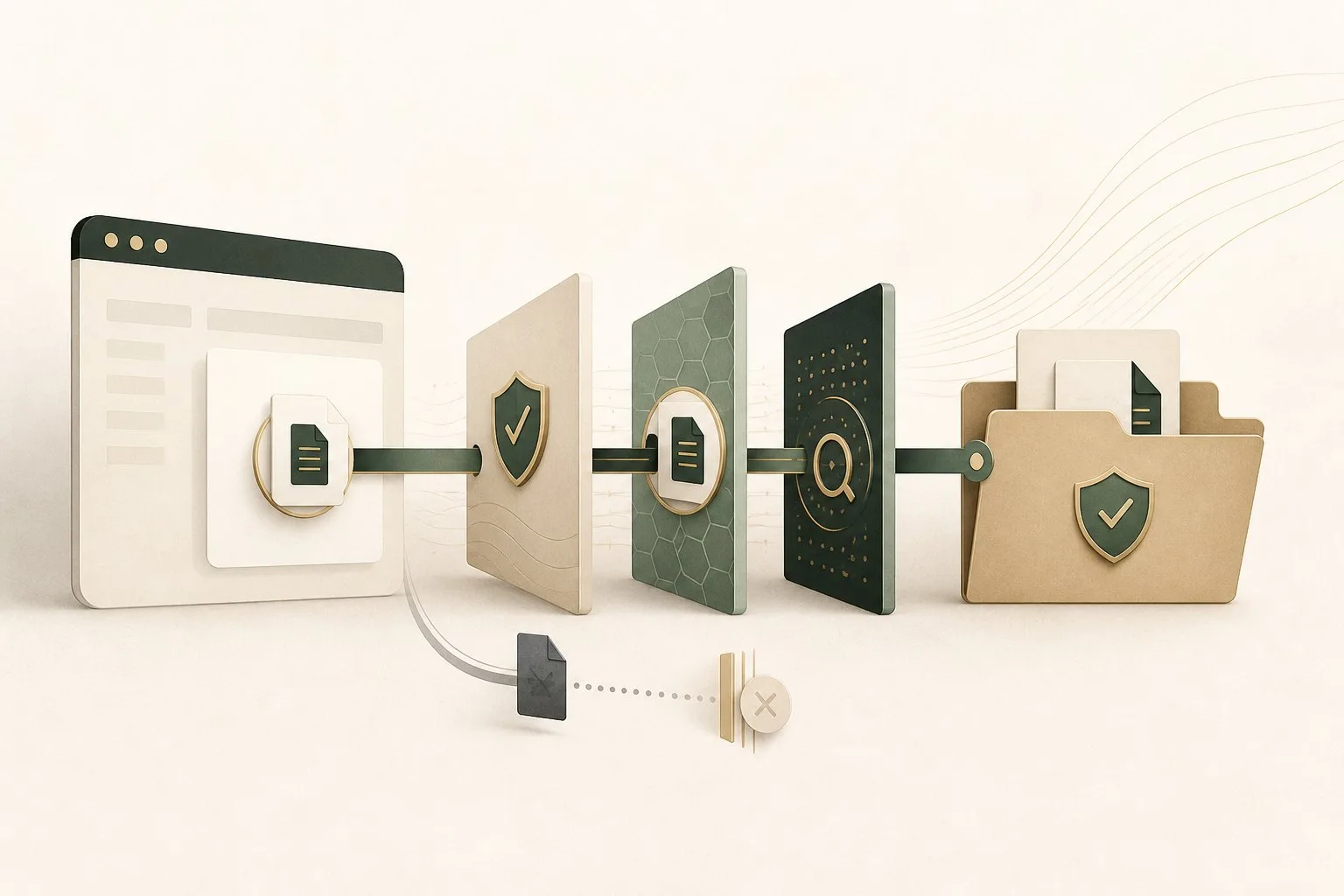
A download crosses an important boundary. A web page is mostly handled inside the browser’s restricted environment; a downloaded file can move into the operating system, open in another application, or install software. Browsers therefore treat downloads with more caution than an ordinary image or paragraph.
No warning system can know every new threat. Safer downloading comes from several layers: a trustworthy source, an encrypted connection, reputation checks, file-type controls, operating-system protections, and a careful decision before opening anything.
The source matters before the file begins
Start with the website and domain. Attackers create imitation download pages, misleading advertisements, and search results that resemble official sources. For applications and updates, reach the publisher through a known address or an existing trusted bookmark.
HTTPS protects the transfer from tampering on the network path, but it does not guarantee that the publisher is honest or that the file is safe. A malicious site can have a valid certificate. Our guide to what HTTPS protects—and what it does not explains that distinction.
Redirects and tracking parameters can also hide the final destination. Pause if a download button sends you through unfamiliar domains, opens several tabs, or produces a different file than the page described.
How browsers evaluate downloads
Modern browsers use reputation and security services to identify known malicious sites and files. Chromium-based browsers can use Safe Browsing signals to warn about dangerous downloads, deceptive pages, and uncommon files. Google documents these protections in its Safe Browsing overview.
A reputation warning is not proof that a file is malicious. A new, specialized, or rarely downloaded program may simply be unfamiliar. The reverse is also true: absence of a warning is not proof of safety. New malware can exist before reputation systems recognize it.
Browsers also pay attention to whether a secure page initiates a download over an insecure connection. Mixed-content protections reduce the chance that a file can be replaced while crossing an unencrypted part of the network.
File types change the risk
Some files are designed to execute instructions: application installers, scripts, command files, macros, and shortcut formats can change the device. Documents and archives can also contain active content or exploit vulnerabilities in the programs that open them.
An image or plain-text file usually carries less direct execution risk, though parsers can still have security bugs. Keep the browser, operating system, document reader, and archive tools updated so known flaws are patched.
File extensions can mislead. An attacker may use a double extension, a look-alike character, or a familiar icon. Configure the operating system to show full file extensions, and do not rely only on the icon or the name shown on the download page.
Archives deserve a second inspection
ZIP and other archive formats can hide the files inside until extraction. Password-protected archives may evade automated scanning because security tools cannot read their contents. Treat an unsolicited encrypted archive—especially one paired with a password in an email or message—with suspicion.
After extraction, inspect the actual file types before opening them. A folder described as invoices or photographs should not contain an executable, script, or unexpected shortcut.
Signatures and checksums answer different questions
A digital code signature can help confirm that software came from a named publisher and has not been modified since signing. Operating systems may show the verified publisher before installation. An invalid or missing signature deserves scrutiny, although small legitimate projects do not always sign every release.
A cryptographic checksum lets you compare the downloaded file with a value published by the developer. NIST defines secure hash standards such as SHA-256 in FIPS 180-4. Matching checksums show that two files are identical; they do not prove the publisher or the published checksum is trustworthy.
For sensitive software, obtain the checksum through the official source and compare it before installation. If both the file and checksum came from the same compromised page, the comparison alone cannot help.
Permissions begin after the download
Opening an installer often triggers an operating-system prompt for administrator access. Read the publisher name and requested action. Do not approve elevation simply because the browser finished downloading the file.
A document may request macros, editing privileges, external content, or a login. These prompts move beyond download protection and should match the task you intended. Unexpected permission requests are a reason to stop.
Browser extensions are another kind of installed software with privileged access. If a download is really an extension, review what browser extensions can see and change before approving it.
A practical download routine
- Use the publisher’s official website or a trusted app store.
- Confirm the domain and expected filename before saving.
- Keep full file extensions visible.
- Respect browser and operating-system warnings; investigate instead of bypassing them.
- Scan unexpected files with current security software.
- Verify signatures or checksums for sensitive installers.
- Back up important data before major software changes.
- Delete files you did not request or cannot explain.
The browser is a checkpoint, not the final judge
Browser protections can block known threats, warn about unusual files, and preserve a secure transfer. The operating system can add scanning, signatures, permissions, and application isolation. Each layer narrows the opportunity for harm.
The final decision still belongs to the person opening the file. A download should have a clear source, a clear purpose, and a file type that fits what was promised. When any of those is missing, stopping is not inconvenient—it is the security feature working through you.
Browse with more intention
Noorani brings prayer times, Qibla, tracker blocking, and privacy into one calm desktop browser built for how Muslims live online.