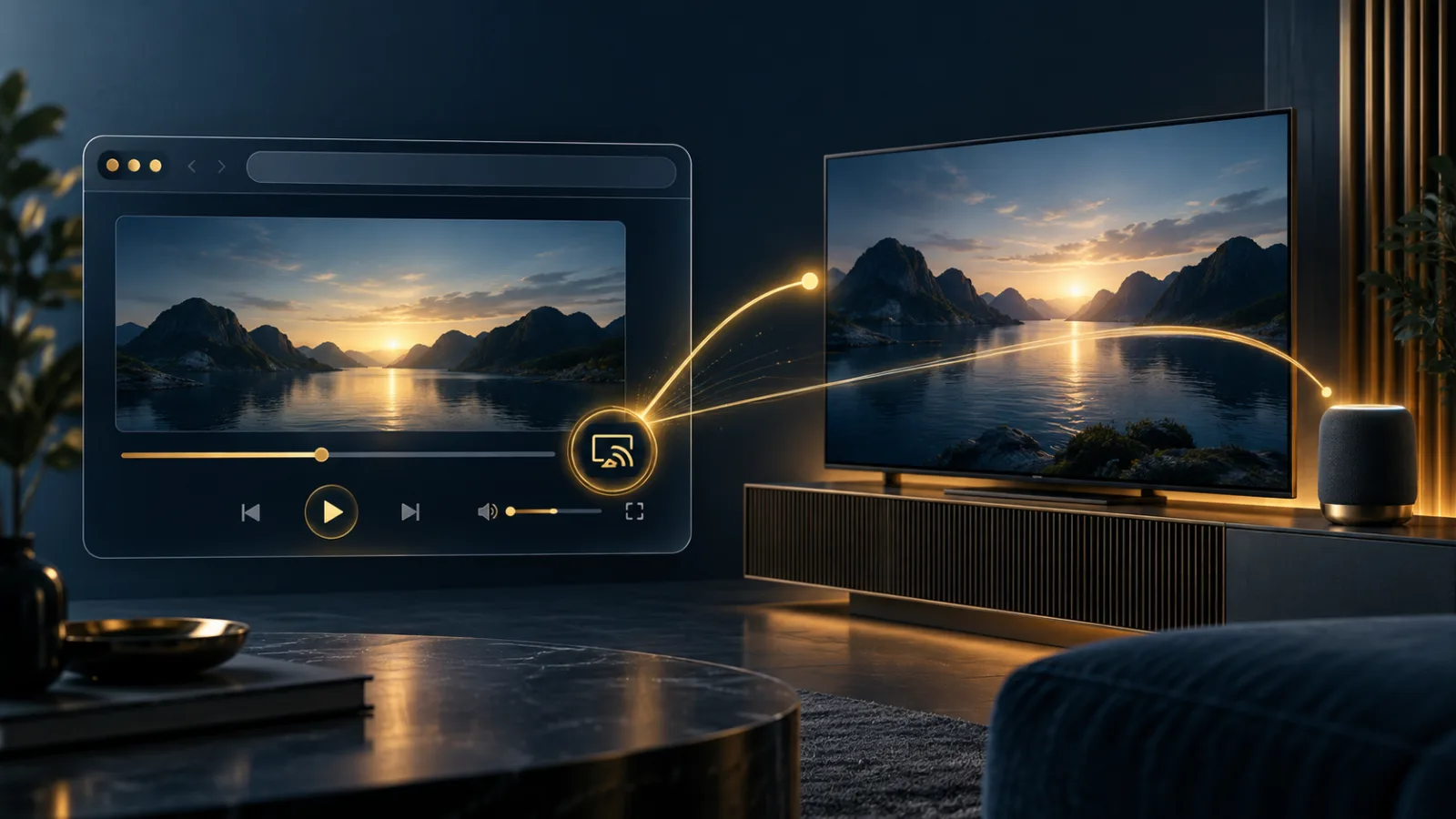
Casting a video from a browser to a television feels like a simple handoff. Tap an icon, choose a screen, and the picture moves across the room. Behind that familiar interaction, the browser is discovering compatible playback targets, asking you to select one, and coordinating control of the media. The Remote Playback API standardizes that flow while keeping the website at a deliberate distance from your device list.
Remote Playback API: what happens when you cast
The Remote Playback API extends web video and audio so a page can detect whether a compatible remote playback option exists, ask the browser to show a device chooser, and respond when playback connects or disconnects. Remote targets can include smart televisions, projectors, speakers, and other devices reached through wired or wireless systems.
The crucial word is browser. A website can request the experience, but the browser is expected to manage selection and permission. According to the W3C Remote Playback specification, choosing a device is the act that grants permission to use it. Canceling the chooser denies the request. A page should not be able to silently pick a living-room screen and begin showing content where other people can see it.
What the page learns before you connect
A media element can ask the browser to watch for availability. The answer is intentionally narrow: essentially, whether at least one compatible remote playback device is available. The human-readable name of the television or speaker is not revealed to the page through this mechanism.
Even a yes-or-no result carries some privacy value. It can indicate that a compatible device is present on the local network and may add one small signal to a broader fingerprint. The standard acknowledges this and advises browsers to avoid revealing device identity. A browser may also stop background monitoring for privacy or power reasons. Availability does not mean the site can browse your network, inspect every device, or connect without a choice.
The device chooser is a security boundary
When a site calls the prompt method, the browser can present its own chooser. This interface should make the requesting origin clear, especially when the control came from embedded content. That detail protects against a deceptive frame presenting a polished “cast” button while obscuring which site is actually asking.
Pause before selecting a destination. Confirm the domain in the browser, then check the device name in the chooser. If a shared office display, hotel television, or neighbor’s device appears, do not select it unless you understand why it is available. The browser-controlled panel matters because it separates the site’s design from the decision that affects a physical screen.
What travels to the remote screen
The API describes control, not one universal transport protocol. Depending on the browser, device, and service, the remote player may receive a media URL and fetch the stream directly, or the local device may relay information in another way. Authentication, subtitles, playback state, and media compatibility can influence the route.
That means casting is not automatically the same as mirroring your whole desktop. Remote Playback is tied to a particular media element. Screen sharing is a different capability with a different privacy boundary. If a service asks you to choose a tab, window, or entire display, use our screen-sharing privacy guide before proceeding.
The specification recommends confidentiality and authenticity for messages between the local browser and remote device, although the precise protocol is implementation-specific. Sensitive accounts still deserve care. Avoid casting private family videos, paid content, or personal audio to an unfamiliar device, and disconnect when the session ends.
Control continues after connection
Once connected, the page can observe connection state and may control ordinary media actions such as play, pause, seeking, and volume where supported. That is expected—the local page remains the controller. It does not imply general control over the television or access to unrelated content on it.
You should still watch the browser’s connection indicator. If media continues playing after you thought you had left, return to the casting control and choose disconnect. Closing a tab may stop the session in many implementations, but an explicit disconnect is the clearest ending. Shared devices can also retain recent-app or account information according to their own platform settings, outside the scope of the web API.
Practical privacy habits for remote playback
- Cast only after checking the requesting website’s domain.
- Select the destination in the browser’s own chooser, not in a page-designed imitation.
- Use trusted home or work networks for private media.
- Disconnect explicitly when playback is finished.
- Review both browser permissions and the receiving device’s account history when using shared hardware.
The MDN RemotePlayback reference summarizes the connection states and availability methods developers can use. Users do not need to memorize those methods. The visible signs—who is asking, which device is selected, and whether the connection remains active—are the useful ones.
Why browser mediation matters
Remote playback is powerful precisely because it bridges a page and the physical room. Good browser design keeps that bridge narrow. A site may learn that some compatible target exists, but it should not receive a catalog of friendly device names. It may open a prompt, but you choose the target. It may control its media after connection, but not the rest of the remote device.
This layered model is similar to other permissions: the browser provides the trusted surface between a website and a sensitive capability. Our browser permissions guide offers a broader way to evaluate those prompts, and our fingerprinting guide explains why modest availability signals should still be treated thoughtfully.
Noorani brings those decisions into a calmer desktop experience, with tracker blocking and privacy protections alongside prayer times, Qibla, Hijri tools, and offline Quran access. Casting can make a screen more useful without making your local environment an open book. The right default is simple: the page may ask, the browser should explain, and you decide.
Browse with more intention
Noorani brings prayer times, Qibla, tracker blocking, and privacy into one calm desktop browser built for how Muslims live online.