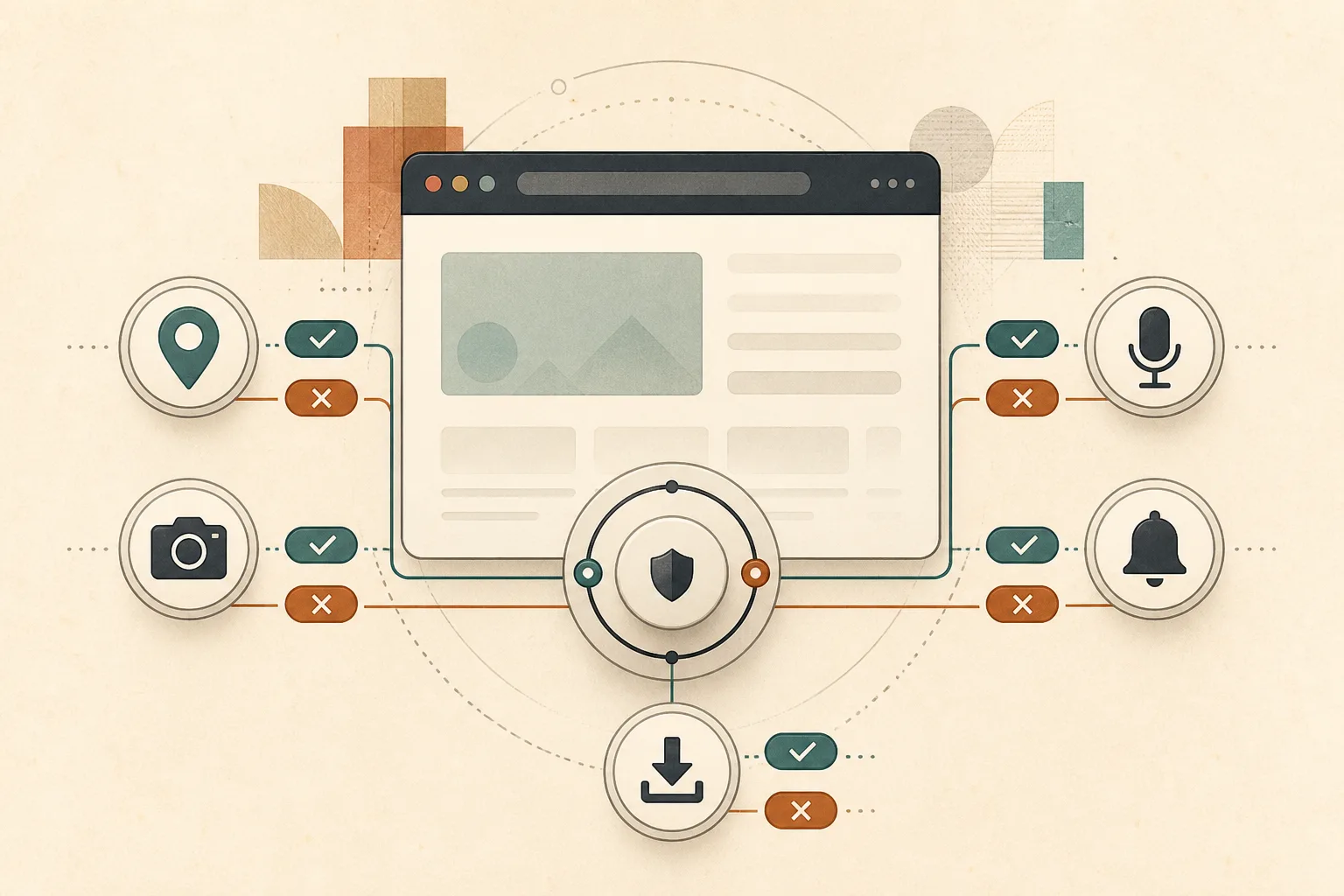
Browser permissions decide whether a site can reach beyond the page: your location, camera, microphone, notifications, clipboard, or connected devices. Most requests are legitimate somewhere. Very few deserve a permanent “allow” everywhere.
A short permissions review reduces exposure without making the web difficult to use.
How browser permissions work
Websites request access through browser APIs. The browser checks the current rule for that site and either allows the request, blocks it, or asks you.
MDN’s Permissions API guide describes the common states: granted, denied, or prompt. A permission belongs to an origin—the combination of scheme, domain, and port—not to every page on the internet.
That origin boundary matters. Allowing the microphone on a trusted meeting service should not give unrelated sites the same access.
Location: useful, precise, and easy to forget
Maps, delivery services, Qibla tools, and local search can justify location access. The strongest default is still “ask.” Approve it when the task requires it, then remove permission from sites that no longer need it.
Location may be approximate or precise depending on the operating system and browser. Noorani’s local Qibla calculation shows a narrow use: obtain the position needed for a bearing, then perform the calculation on the device.
Camera and microphone: approve at the moment of use
Video calls, voice recording, document capture, and identity checks need these sensors. A news article and an ordinary store do not.
Grant access only after you initiated a feature that clearly requires it. If a prompt appears before you pressed a call or recording control, pause and inspect the page. Operating-system indicators can show active capture, but browser permissions remain the first line of control.
After a one-off appointment or interview, revoke access. The next legitimate use can ask again.
Notifications: the permission that keeps returning
Notifications can be appropriate for calendars, messages, or delivery updates. Many sites request them before demonstrating any value. Declining an early prompt rarely breaks the page.
Keep notifications for services where timeliness matters and remove them from publishers or stores you do not want reaching the desktop. This principle also explains why Noorani has no engagement-driven notification feed.
Clipboard, downloads, and connected devices
Clipboard access can support editors, password managers, and productivity tools, but copied text may contain credentials or private messages. Approve it only when a feature you invoked needs to paste or copy.
Automatic downloads and multiple-file downloads deserve similar caution. A single file you requested is different from a page that wants to save a series of files without another decision.
USB, Bluetooth, serial, and MIDI permissions connect websites to physical devices. They are powerful by design. Use them only with known hardware and revoke them after setup or troubleshooting if continuous access is unnecessary.
Why “block everything” is not the best policy
A browser that denies every capability can protect privacy while making essential tools unusable. The better model is least privilege: give a site the smallest access required for the task, for no longer than necessary.
Permissions are not moral ratings. A reputable service may need the camera for a call. A harmless-looking page may have no reason to know your location. Judge the relationship between the feature and the request.
A five-minute permissions audit
- Open browser settings and find Site Settings or Permissions.
- Review location, camera, microphone, and notifications first.
- Remove sites you do not recognize or no longer use.
- Change broad “allow” defaults back to “ask.”
- Review extensions separately; their permissions can be broader than website permissions.
Google’s official site-permissions guide explains the corresponding controls in Chromium browsers. Labels vary slightly, but the model is familiar.
Permissions do not stop ordinary tracking
A site does not need camera or location permission to receive an IP address, request headers, cookies, or browser characteristics. Permission controls protect higher-risk capabilities; tracker blocking and storage controls address other layers.
Read what your browser sends before a page loads for the baseline, and how tracker blocking changes the web for third-party requests.
Make access temporary by habit
The safest permission is one you understand. Ask what feature needs the access, whether the request arrived at the right moment, and whether it should remain after the task ends.
Good permission design keeps control visible. Good user practice keeps approvals narrow. Together they allow useful web applications without turning every past decision into permanent access.
Use one-time access when available
Some browsers and operating systems offer an “allow this time” choice. Use it for a single call, location lookup, or device setup. It avoids creating a standing rule you must remember to remove later.
If one-time access is unavailable, choose “ask” as the default and revoke the site after finishing. Small habits make permission lists easier to trust because the remaining approvals reflect services you still use.
Browse with more intention
Noorani brings prayer times, Qibla, tracker blocking, and privacy into one calm desktop browser built for how Muslims live online.