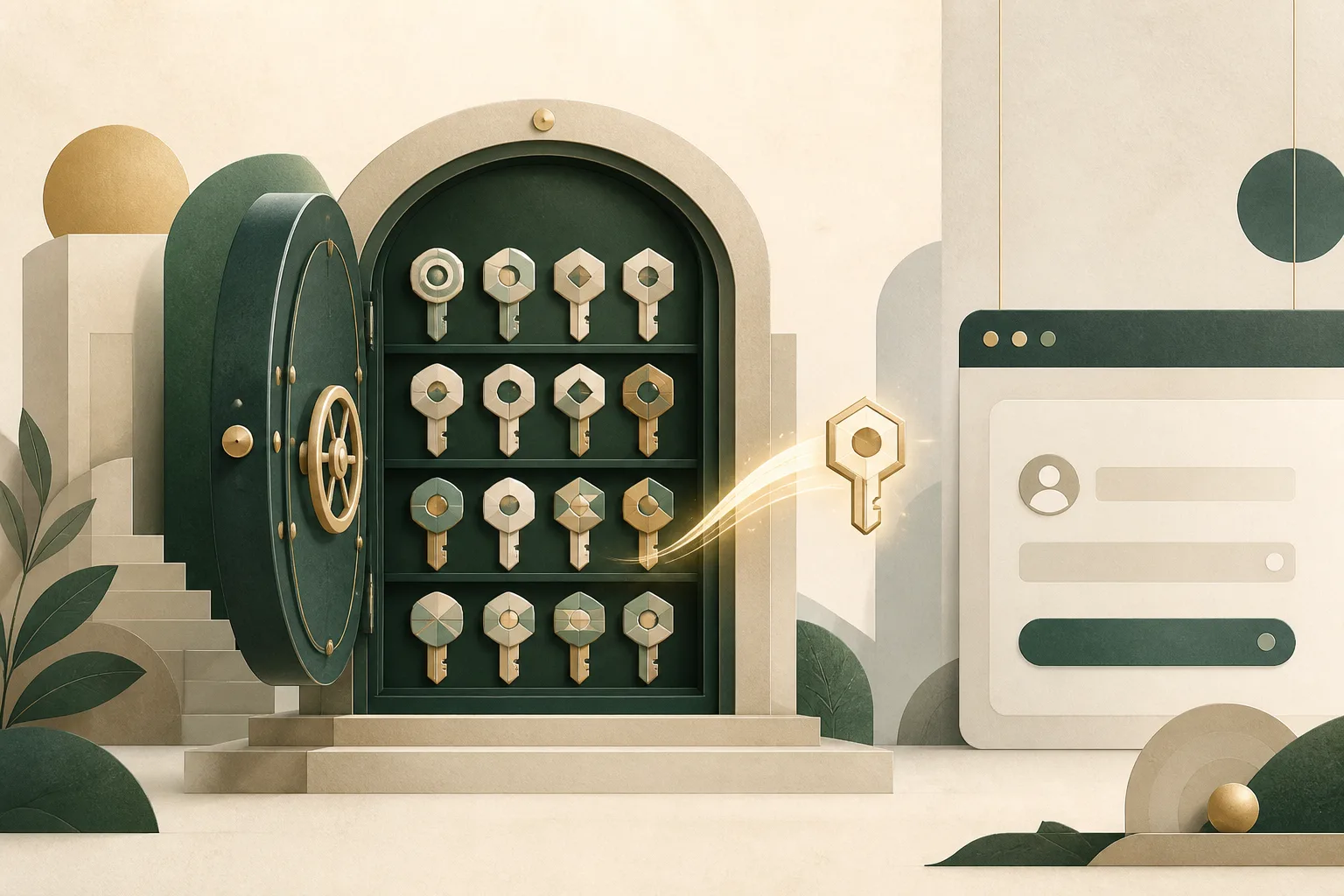
A password manager solves a human problem with software: people are not good at remembering a different long, random password for every account. When a browser offers to generate, save, and fill passwords, it can make strong credentials easier than reused ones.
The security benefit is substantial, but the manager becomes an important vault. Understanding how browser password managers store credentials, match them to websites, and synchronize them helps you use the convenience without treating it as magic.
Why unique passwords matter
Password reuse turns one breach into many. If a shopping site loses your password and the same credential opens your email, an attacker can try it there too. This automated testing is called credential stuffing.
A manager can create a unique password for each account, so a breach at one service does not automatically unlock another. The US National Institute of Standards and Technology recommends password managers as a practical way to support stronger, distinct credentials; its digital identity guidance also emphasizes blocklists and resistance to common password attacks.
Where saved passwords live
A browser may keep credentials in an encrypted store on the device, synchronize them through a browser account, or integrate with the operating system’s credential services. The precise design varies by browser and platform.
Encryption protects the stored database, but access on an already unlocked device may depend on local settings. Some browsers require the operating-system password, biometric confirmation, or device PIN before revealing or filling a saved credential. Enable that extra check when available, especially on laptops that travel or computers used by more than one person.
If passwords are synchronized, the account becomes part of the vault’s security. Our guide to what browser sync means for your privacy explains why account protection and device review matter.
Domain matching can help detect phishing
A password manager records the website associated with a credential. On a convincing imitation hosted at a different domain, it should not automatically offer the saved login. That absence can be a useful warning.
Do not override the signal casually. Read the domain in the address bar and reach important services through a trusted bookmark or known address. HTTPS confirms a protected connection to the displayed domain; it does not prove that a look-alike domain belongs to the organization you intended. See what HTTPS protects—and what it does not.
Autofill is a handoff to the page
Before filling, the manager controls the credential. Once a password is placed into a form, the page can use it. Good managers restrict filling to matching sites and require a deliberate action in sensitive situations, but users should still check where the form lives.
Extensions can also provide password management. They may need broad access to identify forms and fill credentials. Review the developer, permissions, update history, and privacy policy as you would for any privileged extension. Our guide to what browser extensions can see and change offers a practical framework.
The master account deserves the strongest protection
If your password manager uses an account or master password, make it unique and strong. It is one of the few credentials you may need to remember, so length and memorability matter more than awkward substitutions.
Enable multi-factor authentication. A passkey or hardware security key provides strong phishing resistance when supported. Keep recovery codes somewhere safe and separate from the device that normally opens the vault.
Recovery design is a tradeoff. A provider that can reset access may be able to help when you forget a password, while a zero-knowledge system may be unable to recover encrypted data without your secret. Understand which model you chose before an emergency.
What about password breaches?
Many managers can warn when a saved credential appears in known breach data or when the same password is reused. These checks can be designed so the service does not receive the full password. Google describes, for example, privacy-preserving techniques behind Password Checkup.
A warning is a prompt to act, not proof that someone entered your account. Change the affected password directly on the real service, make the replacement unique, and review recent sessions and recovery settings.
Passwords are not the final form of sign-in
Passkeys use public-key cryptography and are tied to the real website, making them resistant to ordinary phishing and eliminating reusable password secrets. Password managers and browsers increasingly store or coordinate passkeys alongside traditional credentials.
The transition will take time. Many accounts still require passwords, and recovery paths may fall back to email or older factors. A good manager remains useful during this mixed period.
A practical setup checklist
- Use a unique password for every account and let the manager generate it.
- Protect the vault or browser account with a strong unique password and multi-factor authentication.
- Require device authentication before viewing or filling saved passwords.
- Remove unfamiliar or retired devices from synchronized access.
- Review breach and reuse warnings promptly.
- Keep recovery codes offline in a secure place.
- Export or back up credentials only in an encrypted, carefully protected format.
Better security through less memorization
A browser password manager is valuable because it changes the easiest behavior. Instead of choosing a memorable password and repeating it, you can generate a strong credential, save it, and fill it only on the matching site.
The vault still needs protection: lock the device, secure the account, review sync, and pay attention when filling does not behave as expected. Used thoughtfully, a password manager replaces fragile memory with a system designed for unique credentials—and makes one of the web’s most common security failures far less tempting.
Browse with more intention
Noorani brings prayer times, Qibla, tracker blocking, and privacy into one calm desktop browser built for how Muslims live online.