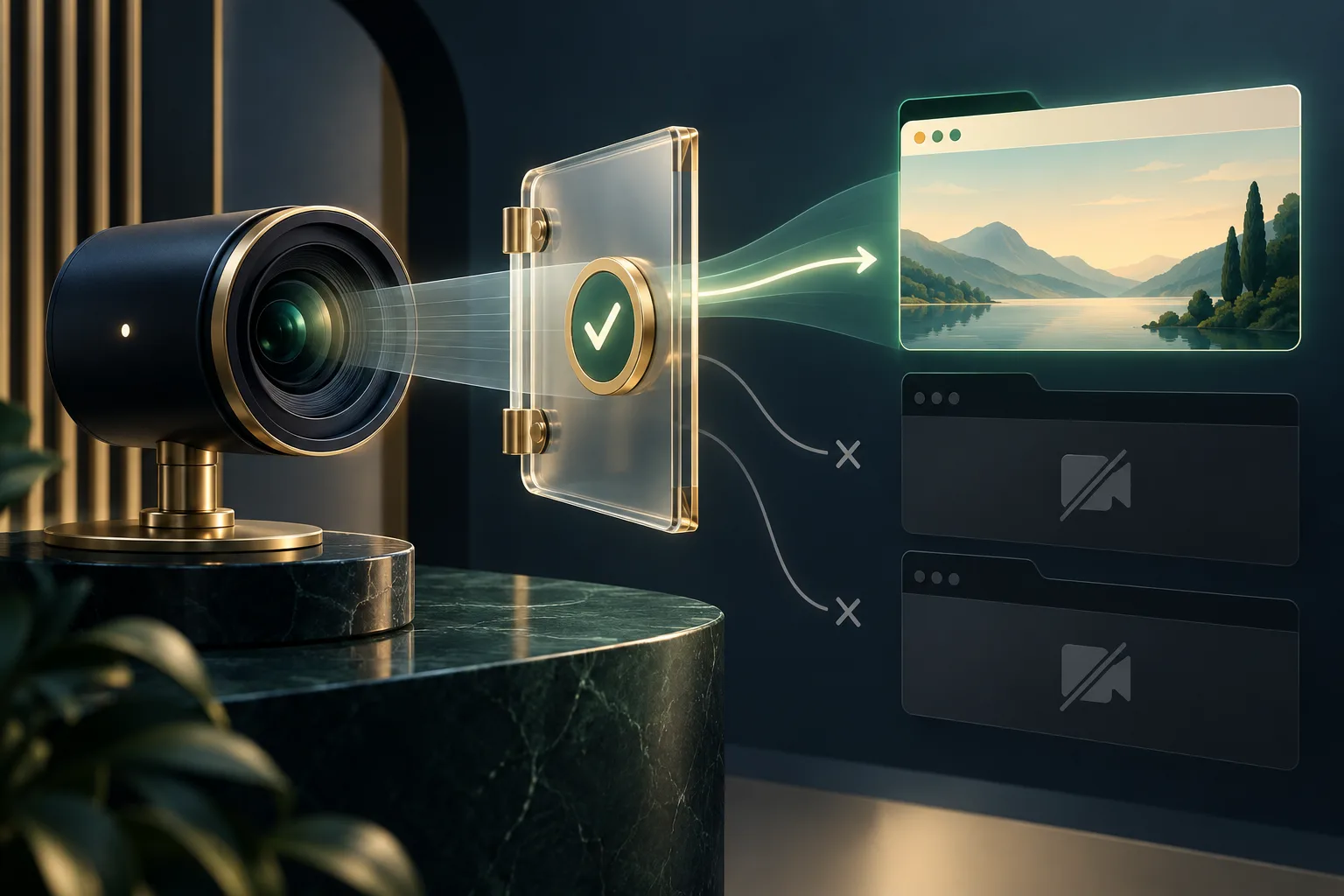
Browser camera permissions control a live doorway
Video calls, identity checks, QR scanners, telehealth visits, classroom tools, and profile photos all depend on browser camera access. The technology is convenient because it works inside a webpage without a separate app. That same convenience deserves care: when you approve a request, the site may receive a live video stream from a camera connected to your device.
A camera prompt is not proof that a page is dangerous. It is a decision point. The right answer depends on what you asked the page to do, which camera it wants, how long access will last, and whether you trust the service receiving the stream.
What a website can request from your camera
Websites normally ask for camera access through getUserMedia(), part of the browser's MediaDevices interface. The MDN getUserMedia reference explains that access works only in a secure context such as HTTPS and requires the user's permission. If approved, the page receives a MediaStream that it can display, process, record, or transmit according to the feature and the site's practices.
A site may request broad access or specify constraints such as a front-facing camera, rear camera, approximate resolution, aspect ratio, or frame rate. It can also ask for microphone access at the same time. Treat camera and microphone as separate permissions: a document scanner may need video but not audio, while a call usually needs both.
Permission does not automatically mean recording
Granting camera access allows the page to obtain the live stream. Recording, saving, analyzing, or sending that stream depends on what the website does next. A reputable service should explain the purpose before asking and make it clear when a session starts or a recording is made.
The safest mental model is simple: once a trusted site has the stream, the browser cannot guarantee every downstream use. Privacy policies, account settings, retention rules, and the service's security all matter. Do not approve access merely because the browser prompt looks official.
Read the browser's camera indicators
Browsers must show that camera permission is granted and provide an indicator when the device is actively being used. The exact icons vary by browser and operating system, but you may see a camera symbol in the address bar, a colored dot, a system tray indicator, or a hardware light beside the lens.
These signals answer different questions. A permission icon can mean the site is allowed to use the camera; an active-use indicator means frames are currently being captured. If an indicator remains after you believe the task has ended, return to the tab, stop the call or scan, close the page, and review its permission.
Embedded tools have additional boundaries
Some sites place video rooms, verification tools, or customer-support widgets inside embedded frames operated by another company. The MDN camera Permissions Policy guide notes that camera access defaults to the page's own origin. Site owners must explicitly allow eligible embedded origins to use it.
This is useful isolation, but you should still read the domain named in a permission request. If the provider is unfamiliar, pause and confirm why the primary site uses it. A polished page can embed a separate service with its own data practices.
When you should allow camera access
You initiated the action
The strongest signal is context. You clicked “Join video call,” “Scan QR code,” or “Take photo,” and the request appeared immediately afterward. A camera prompt on page load, before any relevant action, is usually a reason to deny access.
The purpose is specific
Good interfaces say what the camera will do and whether an image or recording will be stored. “We need access” is weaker than “Use your rear camera to scan this code; no video is saved.” If an alternative upload or manual-entry option exists, choose it when live access is unnecessary.
The duration matches the task
Choose one-time permission where available. Permanent camera access may be convenient for a trusted calling service, but it expands the chance of accidental activation later. Our browser permissions guide covers how to review and reset saved choices.
Safer habits for video, scans, and verification
- Check the address and organization before allowing access.
- Close unrelated tabs that contain private or sensitive information.
- Position the camera so documents, family members, and personal items stay outside the frame.
- Mute or deny the microphone if the task does not require sound.
- Watch the camera indicator during and after the session.
- Stop the stream in the page, then close the tab when finished.
- Revoke saved access for services you no longer use.
Screen sharing is a separate permission with different risks: it can expose notifications, tabs, or an entire display rather than the physical scene in front of a lens. If a meeting asks for both, review our guide to browser screen sharing before selecting a window or screen.
What to do after an unexpected prompt
If a page asks for your camera unexpectedly, choose Block or Deny. The site cannot use the camera through the standard web API without permission. If you approved by mistake, use the address-bar permissions panel to switch camera access off, close the tab, and revisit the browser's site settings to confirm the change.
If you suspect a site captured something sensitive, changing browser permission prevents future access but does not erase data already uploaded. Check the site's account and privacy controls, contact the service about deletion, and review connected sessions. This distinction is similar to other sensitive inputs; our article on browser speech recognition privacy explains why permission and server-side handling are separate layers.
Keep the decision visible and temporary
A camera should feel like a tool you pick up for a clear job, then put away. Initiate the feature yourself, verify the domain, limit access to the necessary device and duration, and pay attention to active-use indicators. Browser protections give you meaningful control, but that control works best when the permission follows the moment—not the website forever.
Browse with more intention
Noorani brings prayer times, Qibla, tracker blocking, and privacy into one calm desktop browser built for how Muslims live online.